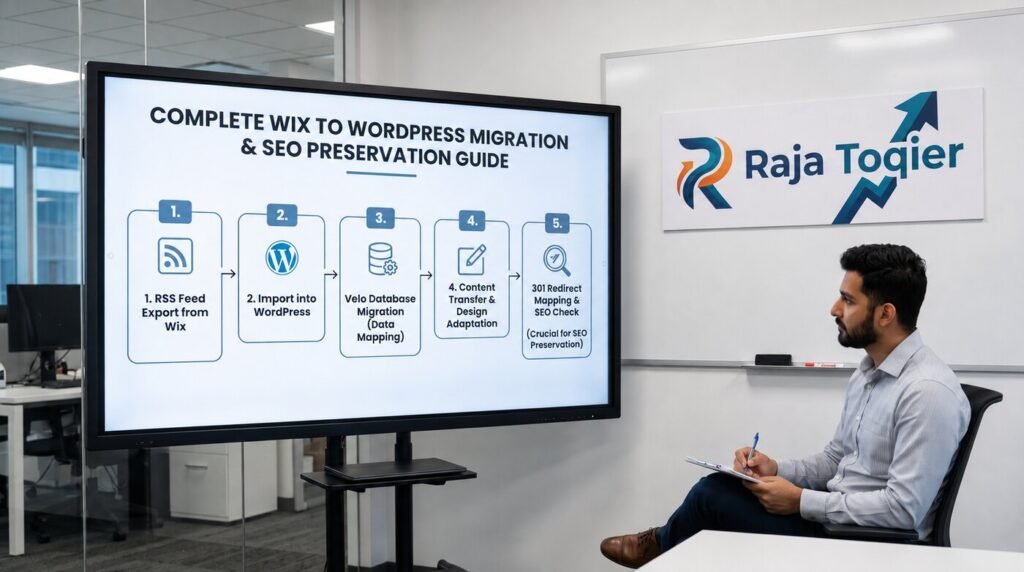
How to Transfer Wix to WordPress: The Step-by-Step Overview
The process of migrating from Wix to WordPress involves manual exportation of content via an RSS feed or using an automated migration plug-in because Wix is a closed proprietary system that lacks a native one-click export option. Migrating involves a series of three stages: pre-migration infrastructure setup, extraction of content and database, as well as SEO migration by means of mapping 301 redirects and configuring DNS.
Transfer Wix to WordPress at a Glance
| Question | Answer |
| Does the website design transfer automatically? | No. Wix uses a proprietary editor, so the website layout must be recreated using WordPress themes or the block editor. |
| Can you keep your SEO rankings? | Yes. Proper 301 redirects, metadata migration, internal linking, structured data, and sitemap submission help preserve existing rankings. |
| Migration Difficulty | Moderate to Advanced |
| Estimated Time | 2-20+ hours depending on website size and complexity |
In general, people think that moving a website implies nothing more than exporting the files to another location in the form of a folder. However, this method does not apply to Wix. Since Wix is a Wix Closed Ecosystem, every page, blog post, and other elements of design have been created in a proprietary system that cannot be used directly by WordPress. There are two options to extract such information: an RSS Feed XML Parser for blog posts or an Automated Migration Plug-In if it is a larger and more complicated website. In any case, you are going to rebuild the site rather than simply move it.
Before touching any content, it helps to see the whole journey mapped out:
- Phase 1: Pre-Migration Infrastructure: Purchase hosting, install WordPress, and configure your server so large imports don’t fail midway.
- Phase 2: Data Extraction & Localization: Pull out blog posts, static pages, Velo databases, and every image so nothing is left hotlinked to Wix.
- Phase 3: Post-Cutover & SEO Preservation: Update DNS, align permalinks, write 301 redirects, and resubmit your sitemap so search engines don’t lose track of you.
Competitor guides tend to treat this as a copy-paste job. In reality, it’s an architectural migration moving a site off a locked SaaS platform and onto self-hosted infrastructure you fully control. If you’d rather explore what that infrastructure looks like across all our services, take a look at our web design and development services.
Key Takeaways
- Wix does not provide a one-click website export to WordPress because it is a closed platform.
- Blog posts can be migrated using an RSS feed, while pages and layouts must be rebuilt manually.
- Wix Velo databases require CSV exports and mapping into WordPress custom post types.
- Images should be localized into the WordPress Media Library to avoid broken links after closing your Wix account.
- Proper 301 redirects, metadata preservation, and XML sitemap submission help maintain SEO rankings.
- Testing the new website before updating DNS minimizes downtime and migration risks.
Which Wix to WordPress Migration Method Is Right for You?
Not every Wix website requires the same migration process. A personal blog can often be transferred using an RSS feed, while websites with custom functionality, online stores, or dynamic content require additional migration steps. Choosing the right approach at the beginning helps reduce errors, avoid unnecessary work, and preserve your website’s SEO performance.
| Website Type | Recommended Migration Method | Difficulty |
| Personal Blog | Export posts using the Wix RSS feed and import them into WordPress. Rebuild pages manually. | Easy |
| Business Website | Manually recreate pages in WordPress, migrate media, and configure redirects. | Moderate |
| Portfolio Website | Rebuild layouts with the WordPress Block Editor or a page builder while transferring media and content manually. | Moderate |
| Wix Blog + Static Pages | Import blog posts via RSS and manually rebuild service, contact, and landing pages. | Moderate |
| Wix Velo Website | Export Velo Collections as CSV files and import them into WordPress using custom post types. | Advanced |
| Wix Stores (E-commerce) | Export products, recreate the store in WooCommerce, migrate images, configure payment gateways, and preserve product URLs with 301 redirects. | Advanced |
Which Method Should You Choose?
- RSS import is suitable for websites that primarily contain blog posts.
- Manual migration is recommended when design accuracy and page layouts are important.
- CSV exports are required for Wix Velo databases and dynamic collections.
- WooCommerce migration is the preferred option for Wix Stores because products, categories, and checkout functionality cannot be transferred automatically.
- Professional migration is often the most efficient solution for large websites with hundreds of pages, custom integrations, or complex SEO requirements.
Pre-Migration Architecture: Setting Up Self-Hosted WordPress
Before you extract a single blog post, your destination needs to be ready. This translates into a Self-Hosted WordPress deployed on actual Web Hosting Infrastructure, not a free trial or subdomain, but rather a hosted environment tailored to support the amount of traffic and data you will be migrating over. Competitors often stop at “buy hosting and install WordPress.” The part they skip is the backend configuration that determines whether your import actually finishes without crashing.
In addition to this, if your project requires a unique layout and not just a default theme, our custom website design experts can create a Gutenberg-native website using your branding prior to the migration.
Server Environment & PHP Execution Limits Setup
Large imports, especially ones carrying years of Wix blog content or Velo database exports, routinely hit server ceilings before they finish. The three critical parameters in this case are PHP Upload Limit (post_max_size and upload_max_filesize) and max_execution_time, which is the time allowed for execution until a timeout occurs midway through importing.
| Setting | Recommended Value | Why It Matters |
|---|---|---|
| max_execution_time | 300 (seconds) | Prevents timeout crashes on large XML or CSV imports |
| upload_max_filesize | 128M | Allows bulk media and export files to upload without rejection |
| post_max_size | 132M | Must exceed upload_max_filesize or uploads silently fail |
| memory_limit | 256M | Gives WordPress enough headroom to process large datasets |
These values can usually be adjusted through your host’s control panel, or directly inside wp-config.php or .htaccess:
php_value max_execution_time 300php_value upload_max_filesize 128Mphp_value post_max_size 132Mphp_value memory_limit 256M- Confirm your host supports custom PHP values before migration day
- Ask about WP-CLI access; it bypasses browser upload limits entirely for very large sites
- Test the import on a staging subdomain first if your host offers one
Baseline Theme Selection & Gutenberg DOM Tree Optimization
Wix page builders generate deeply nested markup to achieve pixel-precise drag-and-drop layouts, which leads to DOM Tree Flattening problems once that content lands in a generic WordPress theme; pages render slow and inconsistent. A lightweight theme based on Gutenberg’s block system like GeneratePress or Astra does not have this issue since it is created with blocks in mind rather than a page builder with div inside div inside div structure.
- Legacy visual builders: heavy inline styling, bloated markup, slower Core Web Vitals scores
- Gutenberg block themes: clean semantic HTML, faster render times, easier long-term editing
Extracting Content from Wix: RSS XML Parsing vs. Manual Transfer
This is where most CMS Data Migration projects actually begin. Wix exposes a limited but usable RSS feed for blog content, and WordPress has a built-in WordPress Importer Plugin that can read it. What most guides gloss over is what RSS can’t do: it will not touch static pages, custom CSS, or inline design elements – only standard blog posts.
Exporting Wix Blog Content via RSS XML Feed
- Add /feed.xml or /blog-feed.xml to the end of your live Wix domain to open the raw feed
- Right-click the page and choose Save As, storing it locally as an .xml file
- In your new WordPress dashboard, go to Tools → Import → RSS
- Select Run Importer and upload the saved XML file
- Assign imported posts to the correct author and review formatting before publishing
WordPress’s official guide to doing this is available here: WordPress’s Wix import guide.
Rebuilding Static Pages & Core Site Layouts
Static pages such as Home, About, Services, and Contact are probably the biggest weaknesses of the RSS feed. They require manual rebuilding in WordPress by matching the Wix sections to the WordPress Gutenberg blocks.
| Wix Visual Component | WordPress / Gutenberg Equivalent |
|---|---|
| Strip / Section layout | Group or Cover block |
| Wix Text box | Paragraph block |
| Wix Gallery widget | Gallery block |
| Wix Button element | Buttons block |
| Wix Form widget | Contact Form 7 or native form block |
If you would like to learn more about the safest method of transferring a WordPress website after it’s been launched, check our tutorial on how to safely transfer a WordPress website from scratch.
Advanced Data Transfer: Moving Wix Velo Databases & Custom Collections
In case your Wix website uses the custom code, this means you are working with Wix Velo Database (previously known as Corvid). The dynamic collections include directories, catalogues, bookings and other data that can’t be accessed with RSS exports. None of the competitor guides within this niche explain how to transfer the Wix website that relies on Velo.
Exporting Velo (Corvid) Collections to CSV Data Structures
- Open the Wix Content Manager and locate each custom collection
- Export every collection individually as a CSV file
- Clean up column headers so field names are consistent and predictable
- Remove Wix-generated system fields (_id, _owner) that won’t map cleanly to WordPress
Importing Custom Post Types (CPT) via WP All Import & WP-CLI
Once your CSVs are clean, WP All Import maps each column to a Custom Post Type field inside WordPress. For very large collections, WP-CLI handles the same job faster from the command line:
wp import velo-export.xml --authors=createOnce done, the WP All Import interface allows you to drag and drop each CSV column into the corresponding custom field, preview the batch, and transfer everything at once.
Media Asset Localization: Neutralizing Wix CDN Hotlinking Risks
And that’s what no migration how-to will mention, but what you should absolutely know – while RSS feed imports will bring your text over to WordPress, the images will remain physically hosted at Wix’s CDN. And that’s where Media Asset Localization comes in, because otherwise, every single one of the images at your new site would be hotlinked from a Wix account that could go defunct very soon.
Expert Tip: Before cancelling your Wix subscription, scan your WordPress website for any remaining static.wixstatic.com image URLs. If images are still loading from Wix’s CDN instead of your WordPress Media Library, they may break once your Wix account is closed.
Identifying Hotlinked Wix CDN URLs (static.wixstatic.com)
The issue can even be easily confirmed by looking into your database – checking if there are any remaining static.wixstatic.com links within the image src tag in your wp_posts table:
SELECT ID, post_title, post_contentFROM wp_postsWHERE post_content LIKE '%static.wixstatic.com%';Automating Local Media Fetching to WordPress Media Library
- Install a media-fetching plugin such as Auto Upload Images
- Run it across all imported posts to download every remote image locally
- Confirm each src attribute now points to your own Media Library, not Wix
- Close or downgrade the old Wix account only after every image has been verified locally
Skipping this procedure is the number one reason why people wind up with their migrated sites full of broken images weeks after the old Wix account subscription runs out.
Preserving SEO Authority: 301 Redirect Mapping & Permalink Structures
This phase determines whether your rankings survive the move. The process involves three different components – Permalink Structure, 301 Redirect Mapping, and Canonical Tag Transfer – all of which combined work to notify Google that your content moved, and didn’t disappear.
For more info on retaining rankings when changing a domain – not only with Wix – check out our guide on migrating a website without hurting its SEO rankings.
| Old Wix URL Pattern | New WordPress Permalink | Redirect Type |
|---|---|---|
| /post/article-title | /article-title/ | 301 (permanent) |
| /blog/category/post-title | /post-title/ | 301 (permanent) |
| /product-page/item-name | /shop/item-name/ | 301 (permanent) |
| Wix hash-based URLs (#!page) | /page-name/ | 301 via RegEx rule |
Aligning WordPress Permalink Rules with Wix URL Structures
Within WordPress, in Settings -> Permalinks, select the Post name type (/%postname%/) whenever possible, as it most closely resembles Wix URL structure for blogs, hence the least amount of redirect rules will be required.
Writing RegEx 301 Redirect Rules (.htaccess / NGINX Server-Level)
Server-level redirects catch every old URL pattern in one place instead of relying on plugin-based rules for each post. An Apache example:
RewriteEngine OnRewriteRule ^post/(.*)$ /$1/ [R=301,L]And the NGINX equivalent:
rewrite ^/post/(.*)$ /$1/ permanent;Preserve SEO Metadata During Migration
While 301 redirects preserve URL authority, they do not transfer your SEO metadata automatically. Titles, meta descriptions, canonical tags, structured data, and social sharing information should all be reviewed after migration to help search engines understand your new WordPress website correctly.
| SEO Element | Recommended Action |
| SEO Titles | Recreate or import every page title into your preferred SEO plugin. |
| Meta Descriptions | Copy existing meta descriptions and optimize them where necessary. |
| Canonical URLs | Verify that each page points to its own preferred canonical URL after migration. |
| Open Graph Tags | Reconfigure Open Graph titles, descriptions, and images for social sharing. |
| Twitter Cards | Restore Twitter Card metadata if previously configured. |
| Robots Meta Directives | Confirm important pages remain indexable and unnecessary pages stay excluded from search results. |
Google Search Console Change of Address & Sitemap Resubmission
Once redirects are live, use Google Search Console Change of Address to formally notify Google of the migration, then submit your new XML sitemap so crawlers prioritize re-indexing the moved pages.
- Verify the new domain/property in Search Console before submitting anything
- Submit your new sitemap.xml under Sitemaps
- Spot-check 10-15 high-traffic URLs to confirm redirects resolve with a 301, not a 302
- Monitor Search Console’s Pages report weekly for the first month post-cutover
Final Cutover & Infrastructure Configuration
Finally, after the content, media, and redirects are taken care of, it’s time to point the domain name to its new location. If you’d like to read more about the process of migrating from Wix to WordPress without loss of traffic, here is how to migrate your WordPress site smoothly without traffic and data loss.
Updating Registrar DNS Nameservers & A Records
The DNS Nameserver change is the actual switch from Wix’s servers to your WordPress hosting.
- Lower your domain’s TTL (Time to Live) 24-48 hours before cutover so changes propagate faster
- Update the A record or nameservers at your registrar to point to your new host
- Monitor DNS propagation using a checker tool until it’s fully resolved worldwide
- Keep the Wix site live in read-only mode as a fallback until propagation completes
Post-Migration Hardening & WordPress Security Baseline
Migration from a locked, managed by Wix SaaS platform to an open-source WordPress means that you are now responsible for website security on your own. The firewall protection, malware scan and login hardening cannot be considered nice-to-have options anymore; those are basic requirements starting from the day your site became self-hosted. That’s exactly what our professional WordPress website security audit and hardening service can do for you.
Traditional SEO vs. Next-Gen GEO Benchmarks: What Actually Matters Now
A successful migration used to be measured purely by keyword rankings. Nowadays, Schema Markup Transfer and Content Structuring for AI Overviews have become equally important as traditional ranking factors. Here’s how the two benchmarks compare:
| Traditional SEO Indicator | Next-Gen GEO Benchmark |
|---|---|
| Keyword density in body copy | Answer-first, 50-70 word direct-response snippets |
| Backlink volume | Entity clustering and topical authority depth |
| Meta title/description optimization | Structured JSON-LD schema for AI citation eligibility |
| Page 1 ranking position | Inclusion in AI Overview / generative answer boxes |
| Manual internal linking | Semantic Internal Link Structure supporting topic clusters |
| Site-wide crawl frequency | Crawl Budget Optimization prioritizing high-value URLs |
Wix to WordPress Migration Checklist
Before pointing your domain to the new WordPress website, use this checklist to help ensure nothing important has been overlooked.
- Set up your WordPress hosting and install WordPress.
- Export your Wix blog posts and migrate any required content.
- Rebuild static pages and website layouts.
- Transfer images to the WordPress Media Library.
- Export and import Wix Velo collections (if applicable).
- Configure SEO-friendly permalinks and implement 301 redirects.
- Test important pages, forms, images, and internal links.
- Submit your XML sitemap in Google Search Console after launch.
Common Wix to WordPress Migration Mistakes
Avoiding these common mistakes can save time and help protect your website’s SEO during migration.
- Closing your Wix website before confirming all content and images have been transferred.
- Forgetting to implement 301 redirects from old Wix URLs to their new WordPress equivalents.
- Leaving images hosted on Wix instead of importing them into the WordPress Media Library.
- Publishing the new website without testing important pages, forms, and internal links.
- Skipping XML sitemap submission and post-migration checks in Google Search Console.
This is also where SEO Link Juice Retention comes full circle: a technically clean migration – correct redirects, preserved Internal Link Structure, intact schema – is what allows a site to keep ranking and start appearing in AI-generated answers at the same time.
Migration from Wix to WordPress involves not only a change in the way your server and database interact but also changes in your search infrastructure, which is why in most cases, it is better to contact a professional to do that for you. If you’d rather hand off the technical work entirely, get in touch with our team and we’ll scope your migration from start to finish.
Using Weebly instead? Read our guide on moving from Weebly to WordPress.
Frequently Asked Questions
It depends on what you need. While Wix is more suitable for people who need a user-friendly builder without any technical background, WordPress is much better for people who need complete ownership of the website, maximum design freedom, and long-term SEO optimization.
Yes. The content of the blog can be transferred by means of importing an RSS feed into WordPress. The transfer of static pages, custom database (Wix Velo Collections) and media requires additional actions but the whole website can be completely transferred.
Wix locks your content, design, and data inside a proprietary, closed ecosystem with no native export tools. This limits design flexibility, restricts advanced SEO and schema control, and makes switching platforms later far more technically demanding than it needs to be.
WordPress stands out for most companies seeking longevity due to its advantages over Wix in terms of being open source, having lots of plugins and themes to choose from, and offering much more control over SEO and page speed compared to Wix, which is a closed platform.
Apart from fewer options for exporting your site, Wix pages usually have heavy page code because of the visual builder. Ongoing subscription costs, restricted third-party integrations, and less granular technical SEO control are the other common downsides.