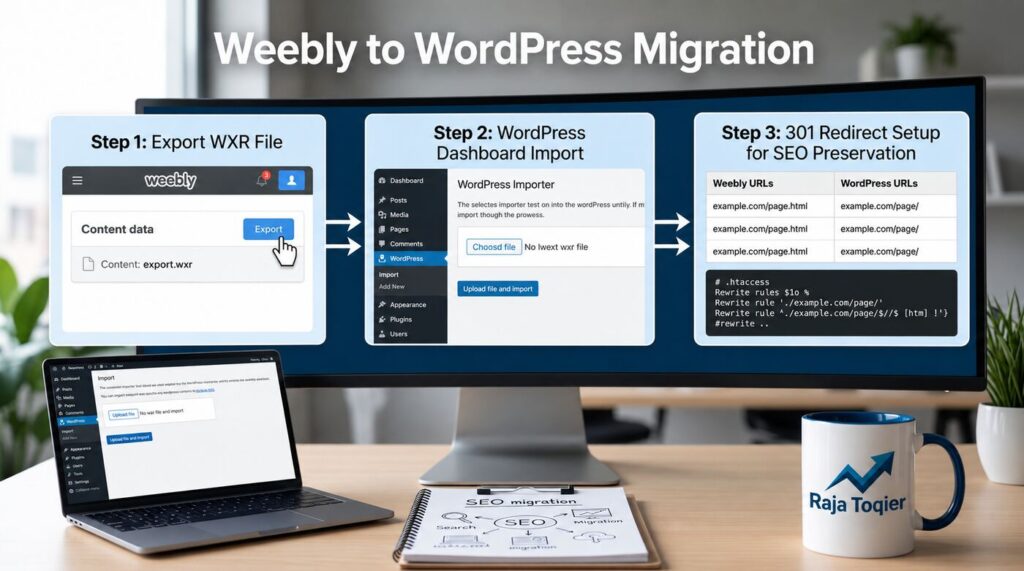
How to Migrate Weebly to WordPress
In order to switch from Weebly to WordPress, you will have to choose a web hosting environment and export your Weebly content as a WXR/XML file through certain converter tools and import the content from WordPress Dashboard > Tools > Import. Then set up custom DNS nameservers for your new hosting environment, configure 301 redirects from old .html links to new permalinks, download and localize CDN media files, and protect yourself from vulnerabilities.
| Migration Factor | Details |
| Difficulty | Intermediate |
| Estimated Time | 2-8 Hours |
| SEO Risk | Medium (Low with proper redirects) |
| Downtime | Usually less than 30 minutes |
| Best Migration Method | WXR/XML Export + WordPress Import |
| Preserve Existing URLs | Yes (using 301 redirects) |
| Can You Keep Your Domain? | Yes |
| Recommended Backup | Full website backup before migration |
Since you used Weebly for building your initial website, you already understand its advantages and limitations. Weebly is going to imprison you in its proprietary editor, limited SEO options, and almost non-existent plugin system. On the contrary, WordPress provides you with open-source code, a countless number of plugins and control over your Web Hosting Environment. At rajatoqier.com, we help small businesses and agencies execute a Weebly to WordPress migration without losing a single visitor or ranking position. For more information about switching from one platform to another without losing SEO rankings, check our blog post about the smoothest way to migrate your WordPress site without losing traffic or data.
Weebly vs. WordPress Platform & Feature Comparison
Before you touch a single export button, it helps to see exactly what you’re trading up for. The following is a table that highlights the architectural differences that will inform how much control you will have after migration is done.
| Feature | Weebly | WordPress (Self-Hosted) |
| Database Access | None – fully closed platform | Full MySQL database access |
| SEO Metadata Control | Basic title/description fields only | Granular control via SEO plugins, schema, canonicals |
| Plugin Ecosystem | Limited built-in apps | 60,000+ plugins for any function |
| Custom Code / Themes | Restricted embed code only | Full theme and code-level customization |
| Hosting Control | Locked to Weebly’s servers | Choose any host, server config, or CDN |
Pre-Migration Prerequisites & Server Environment Setup
First, any good migration must start with the proper infrastructure, not the import tool. You cannot do anything until you have a working hosting account that will host your website, a Custom DNS record that can be modified, and a plan on how to get the SSL certificate/HTTPS protocol in place. This is because most migrations fail due to neglecting this step.
Step 1: Provision Web Hosting & Deploy WordPress CMS
Set up the receiving environment before you export anything from Weebly:
- Choose a host with cPanel or a managed WordPress dashboard and a one-click installer
- Create a new MySQL database and assign a dedicated database user with full privileges
- Confirm the server runs PHP 8.1 or higher for compatibility with current WordPress releases
- Install WordPress core and generate your initial admin credentials
- Provision and activate an SSL certificate on the new domain or staging subdomain
Step 2: Temporarily Adjust Weebly SSL & Domain DNS TTL Settings
High DNS Time-To-Live values and an actively forced SSL redirect on Weebly can interrupt asset scraping and slow down your eventual cutover. Handle both before you export:
- Log into Weebly’s site settings and temporarily disable forced HTTPS redirection
- Navigate to your domain registrar’s DNS management panel
- Lower the TTL value on A records and CNAMEs to 300 seconds (5 minutes)
- Wait at least 24-48 hours for the lowered TTL to propagate before your planned cutover window
Expert Tip:
Reduce your DNS TTL at least 24-48 hours before migration. This helps DNS changes propagate faster during launch and minimizes downtime for visitors.
Step-by-Step Content & Media Export Methodologies
When the infrastructure part is sorted, the next step is the actual migration of data. Here, one will need a Weebly to WP Converter Tool to convert their data to WXR/XML file format. This is how most site owners do their migration.
Method A: Automated WXR/XML Payload Generation via Converter Utilities
- Sign up for a dedicated Weebly-to-WordPress converter utility
- Connect or authorize access to your live Weebly site, or upload a manual export file
- Select the WXR/Extended RSS export format rather than a basic RSS feed
- Generate and download the resulting XML payload to your local machine
- Spot-check the file to confirm the post and page count matches your live Weebly site
For those who want to check how to migrate data officially from Weebly to WordPress, WordPress’ import from Weebly documentation highlights all the types of file formats and elements that are supported for migration.
Expert Tip:
Before importing into WordPress, compare the number of exported posts and pages with your live Weebly website. Catching missing content early is much easier than troubleshooting after launch.
Method B: Manual Extraction via Weebly HTML Zip Archives & RSS Feeds
For non-standard builds, large media libraries, or sites where a converter tool times out, fall back to Weebly’s native export function. Email Archive and native RSS Feed Content Extraction should be used in combination with each other to obtain a ZIP archive of all the pages in HTML format and post contents and metadata. This method takes longer to reassemble but gives you a complete offline copy as a safety net before you begin.
Ingesting Weebly Content into the WordPress Dashboard
Once you have a clean export file, the WordPress Dashboard (Tools > Import) screen is where content actually lands in your new site. This stage runs on the WordPress Importer Plugin, and getting the settings right the first time avoids duplicate content and orphaned authors later. Our step-by-step guide on how to transfer a WordPress site safely covers the same import mechanics in more depth if you want a second reference.
Running the Native WordPress Importer Plugin
- Go to Tools > Import inside your new WordPress dashboard
- Install and activate the official WordPress Importer plugin if it isn’t already active
- Upload your WXR/XML export file and click Upload file and import
- Map each Weebly author to an existing or new WordPress user account
- Check the box for “Download and import file attachments” before submitting
- Run the importer and monitor the confirmation screen for any skipped items
Solving the CDN Image Hotlinking Gap: Localizing Remote Media Assets
Choosing “Download and import file attachments” is not always sufficient, as many Weebly exports may have their images hotlinked to Weebly’s CDN, meaning your images will be lost once your Weebly account expires. Run a dedicated Media Library Asset Extraction pass using a plugin like Auto Upload Images, or a WP-CLI script that crawls post content and downloads every remote file into /wp-content/uploads/, rewriting the URLs to point locally.
Expert Tip
Don’t assume every image has been imported. Randomly inspect several pages and confirm that images are loading from your WordPress uploads directory instead of Weebly’s CDN.
Even though your content gets imported into WordPress, you cannot expect the same style as in Weebly without Theme Rebuilding and Layout Customization to match fonts, colors, and layouts. In addition, you will have to manually create the navigation menu hierarchy by going to Appearance > Menus. This is also the moment to double-check SEO Metadata Migration – titles, meta descriptions, and image alt text don’t always carry over cleanly through an XML import, so audit a sample of pages before you go live.
Don’t want to chase down broken images and missing metadata by hand?
SEO Preservation: URL Permalinks, 301 Redirects & DNS Propagation
Ranking equity is the single biggest thing at risk during any platform switch. Protecting it comes down to three mechanisms: 301 Permanent Redirects from every old URL, a WordPress Permalinks & URL Structure setup that mirrors your original paths as closely as possible, and updated Canonical Tags (rel=”canonical”) pointing search engines to the new, correct address.
Aligning WordPress Permalink Structure with Weebly URL Patterns
In WordPress, go to Settings > Permalinks and choose a structure that most closely mirrors your Weebly paths, typically /%postname%/ for blog content. If your Weebly URLs ended in .html, you won’t be able to match that exactly in WordPress, which is exactly why server-level redirects below matter so much more than permalink settings alone.
Configuring Server-Level .htaccess & Nginx 301 Redirection Rules
Every old Weebly .html URL needs a rule mapping it to its new WordPress permalink. On Apache, add rewrite rules to your .htaccess file:
RewriteEngine On
RewriteRule ^old-page\.html$ /new-page/ [R=301,L]
On Nginx, the equivalent rewrite lives in your server block:
rewrite ^/old-page\.html$ /new-page/ permanent;For those with tens or hundreds of pages, create this mapping automatically based on your existing Weebly sitemap, not by manually typing out each rule – the quickest way to prevent a surge in 404 errors immediately following the transition.
Expert Tip:
Crawl your old Weebly website with Screaming Frog before migration. Export all URLs and use that list to verify that every important page returns a 301 redirect after launch.
Domain Cutover: Pointing Nameservers & DNS Propagation
With redirects live and tested on a staging URL, it’s time for the actual domain switch. Update your A records or nameservers at the registrar to point to your new host, and expect DNS Propagation & TTL Settings changes to take effect within the lowered TTL window you set earlier. If you’re also changing domains entirely rather than keeping the same one, our guide on transferring a website to a new domain without losing SEO covers the additional steps that apply on top of a platform migration.
Not sure if your redirect map is actually catching every old URL?
Common Weebly to WordPress Migration Mistakes
Avoid these common issues that can negatively affect your website’s performance and SEO after migration:
- Forgetting to create a complete website backup before starting.
- Skipping 301 redirects, resulting in broken links and lost rankings.
- Leaving images hosted on Weebly’s CDN instead of downloading them locally.
- Changing URL structures without updating internal links.
- Missing SEO metadata such as page titles, meta descriptions, and image alt text.
- Launching the new website without testing redirects, forms, and navigation.
- Forgetting to submit the updated XML sitemap to Google Search Console.
Database Integrity, SSL Handshake & Technical Remediation
This is where most simple tutorials miss an entire layer – and the point at which the hurried migration quietly breaks, a few weeks post-launch, when an internal link error or mixed content notice finally becomes apparent.
Database Serialization & Post ID Relational Mapping
When your XML file imports, WordPress assigns new post IDs that rarely match your original Weebly structure. Any content that references another post by ID related-post widgets, custom fields, shortcodes can silently break. Proper Internal Link Mapping in the migration process involves verifying that the relational taxonomy, custom fields, and cross postings map properly to the new IDs and do not point to orphaned or mismapped content.
HTTPS SSL/TLS Remediation & Database Search-and-Replace
If any content was saved with hardcoded http:// links, your new SSL-secured WordPress site will throw mixed-content warnings in the browser. Resolve this with a database-level search-and-replace using WP-CLI:
wp search-replace 'http://oldsite.com' 'https://newsite.com' --all-tablesAlways run this against a database backup first – a search-and-replace across serialized data can corrupt custom field values if it isn’t run through a serialization-aware tool like WP-CLI.
Post-Migration Site Security, Health Audits & Search Indexation
Launch day isn’t the finish line. The last step includes re-verifying your property in Google Search Console, conducting a thorough Broken Link Audit, and resubmitting your XML sitemap to ensure the search engines crawl your site again, instead of waiting for them to find it independently.
Recommended Tools for a Successful Weebly to WordPress Migration
| Tool | Purpose |
| WordPress Importer | Import XML/WXR content |
| Auto Upload Images | Download Weebly CDN images locally |
| Better Search Replace | Update URLs after migration |
| Redirection | Create and manage 301 redirects |
| Screaming Frog SEO Spider | Crawl and verify redirects, links, and metadata |
| Rank Math or Yoast SEO | Configure metadata, schema, and XML sitemaps |
| Google Search Console | Monitor indexing and crawl issues |
| Google PageSpeed Insights | Check Core Web Vitals and performance |
Google Search Console Validation & XML Sitemap Resubmission
- Re-verify site ownership in Google Search Console under the new hosting environment
- Update or confirm canonical tags across key landing and blog pages
- Generate a fresh XML sitemap using your SEO plugin
- Submit the new sitemap URL inside Search Console
- Use the URL Inspection tool to request re-indexing on your highest-traffic pages
If you want a professional set of eyes confirming nothing was missed in this phase, our SEO audit service checks crawl status, indexation, and technical health across the newly migrated site.
Expert Tip:
Monitor Google Search Console daily for the first two weeks after migration. Address crawl errors, redirect issues, or indexing problems as early as possible to protect organic traffic.
Weebly to WordPress Migration Checklist
- Website backup completed
- WordPress hosting configured
- SSL certificate installed
- XML/WXR file exported
- WordPress import completed
- Images localized
- Navigation rebuilt
- SEO metadata verified
- Permalinks configured
- 301 redirects implemented
- Sitemap generated
- Search Console verified
- Crawl completed
- Broken links fixed
- Website tested on desktop and mobile
Comprehensive WordPress Website Security & Vulnerability Hardening
A freshly migrated WordPress site is also a freshly exposed one – self-hosted WordPress carries security responsibilities Weebly handled for you automatically. Lock it down immediately:
- Enforce two-factor authentication on all administrator accounts
- Change the default wp_database table prefix during or immediately after migration
- Install a reputable firewall and malware-scanning security plugin
- Run an initial full-site malware scan before announcing the migration publicly
- Set up automatic updates for WordPress core, themes, and plugins
But if it’s something that isn’t sustainable for your team to do, our Website Security Services can take care of monitoring, managing firewalls, and updating the system to avoid any vulnerabilities six months down the road.
Ready to move off Weebly without the technical guesswork? See how our website security and migration team can help.
Every migration process will have edge cases that aren’t covered by a standard guide – including legacy Weebly stores, membership pages, custom embed code, and other unique circumstances. If you would prefer an expert to manage all of the technical work on your migration, get in touch with us via the contact page to book a consultation.
Frequently Asked Questions
Weebly has not been officially discontinued and is active under its new owner, Square, although development has slowed considerably compared to open-source alternatives. Weebly also has fewer feature updates due to its closed architecture and limited site owner control, so many more experienced Weebly users are migrating to WordPress because of it.
WordPress is a much better option for growing businesses and content-focused websites in terms of SEO options, flexibility, and availability of plugins. However, Weebly may still be sufficient for smaller sites that don’t require complex customization.
Self-hosted WordPress is the most common upgrade path from Weebly because it combines an open-source codebase with an enormous plugin ecosystem and full design freedom. Squarespace and Wix, among other website builders, provide simpler setups, yet face identical closed platform restrictions.
Weebly makes an excellent choice for novice users looking for an entry-level solution for brochure-type websites, portfolios or small online shops where extensive customization is not required. While the drag-and-drop editor is very user-friendly, the lack of advanced SEO capabilities, database connections and customization options makes Weebly unsuitable for businesses that consider growth in their future plans.
Blogging functions on Weebly are somewhat elementary and do not have features available on dedicated blogging platforms. They include categories and SEO optimization options. Bloggers who constantly post on their websites usually switch from Weebly to WordPress rather quickly.