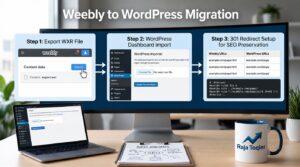
The Reasons Why It Might Scare You Moving Your WordPress Site
Do you hesitate to finally transfer WordPress site files to another host? You’re not the only one with this problem. For some webmasters, the concept of migrating an entire site along with its files, database, themes, plugins, etc., might seem terrifying. How could this affect your site? What if your site won’t work anymore? And what if your website ranking drops after migration?
However, in reality, WordPress migration can be really easy when done with proper steps and techniques. No matter whether you want to move to a more powerful server or simply choose another hosting provider because of better performance, the following guide will show you how to perform the process of migrating successfully and smoothly.
This guide explains two types of migrations: using plugins (ideal for beginners) and doing a manual WordPress migration.
Before You Start: Important Items to Consider Before Migration
The most common reason behind the failure of a migration project is the lack of preparation. Here are the key tasks that you should consider:
- Backup everything: all files and the database.
- Prepare your website’s staging environment on your new host.
- Write down the current wp-config.php configuration.
- Ensure your PHP & MySQL versions match the new server.
- Make sure you have access to your domain registrar account for DNS settings.
- Disable caching plugins temporarily to avoid stale files during the transfer.
A clean preparation stage makes the actual migration almost mechanical. If you’re running an online store, these steps matter even more. Check out the dedicated Ecommerce Website Design service page for platform-specific advice before you begin.
Method 1: Migrate WordPress Site With a Plugin
It’s probably the easiest way for an average beginner to migrate a website from one host to another. And here are some of the top plugins that users rely upon:
| Plugin | Free Version | Best For | DB Size Limit |
|---|---|---|---|
| Duplicator | Yes | Small to medium sites | Unlimited (Pro) |
| All-in-One WP Migration | Yes (512MB) | Beginners | 512MB free |
| WP Migrate DB | Yes | Database-only migration | No limit |
| UpdraftPlus | Yes | Backup + migrate | Depends on storage |
Steps to Migrate with a Plugin
- Install the selected plugin on your current site (source).
- Create a migration package file and export.
- Setup WordPress on your new hosting account (installation from scratch).
- Install the same plugin on the new installation.
- Upload the migration package and complete the wizard steps.
- Update wp-config.php file with database credentials (in case requested).
- Run a full site test before switching DNS.
Using a migration plugin handles most of the heavy lifting for you, including serialized data in the MySQL database. However, very large sites (above 2GB) may hit limits with free plugin versions, in which case, the manual method below is your best option.
Need Help With Your WordPress Migration?
Method 2: WordPress Site Migration – Manual Approach
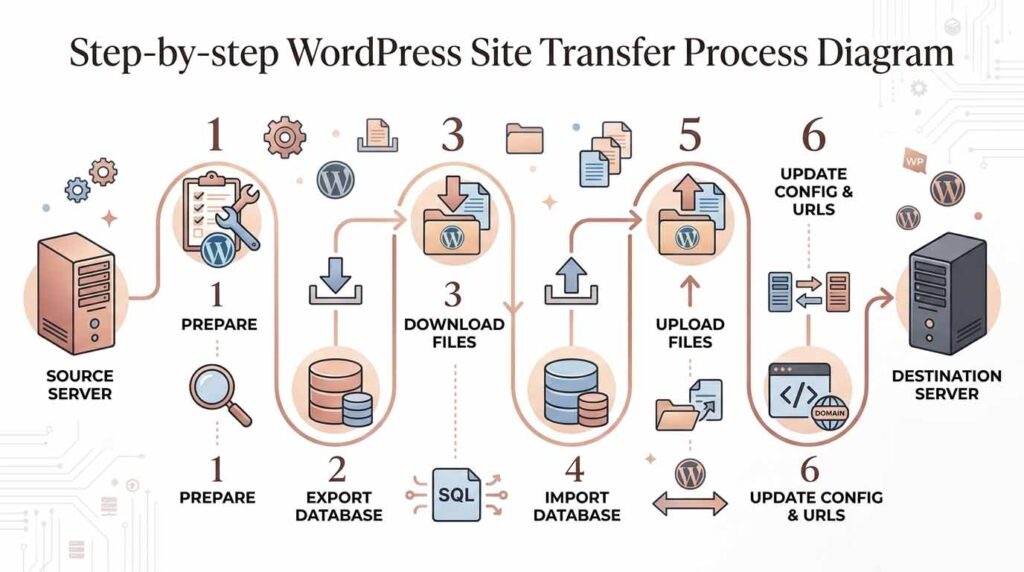
The manual WordPress migration involves several steps, but it allows for total control of each file and each table within your WordPress database. The following explains how it all goes down.
Step 1 – Downloading the WordPress Files
Connect to your existing web host server via a FTP client like FileZilla, or even the file manager utility offered by your web host. Identify the location of the public_html folder (wherever your WordPress installation is stored right now), and download all the stuff from there (core files, themes, plugins, uploads).
This stage presupposes the use of File Transfer Protocol (FTP/SFTP) technologies, and it may take a little while because of the website size. Larger media libraries especially can take a while. Be patient; don’t interrupt the transfer.
Step 2 – Exporting Your WordPress Database
Login to your current web hosting server via the cPanel account. Use phpMyAdmin and log into your MySQL database on the left navigation pane. Next, go to the “Export” section and select the “Quick” choice.
This .sql file is a complete snapshot of your database; export all your posts, pages, settings, users, and comments live here. Guard it carefully.
Step 3 – Installation of WordPress in New Hosting Account
From your new hosting account, create new database using either Plesk or cPanel and take the name of your database, user ID, and password. This way, you may proceed with installing a new copy of WordPress or uploading your WordPress files into public_html via FTP.
Step 4 – Upload SQL File Using phpMyAdmin
Log in to phpMyAdmin at your new hosting provider. Select your new database, then go to the Import tab to import SQL file there. Here’s the thing: when the importing of SQL file is done successfully, all your website content will be saved in your new database.
Step 5 – Configure wp-config.php
The wp-config.php file is the only one required by WordPress for accessing the database. The fact is that this file consists of database names, user IDs, and passwords. Edit wp-config.php file that has been uploaded on your new hosting account accordingly.
Step 6 – Modifying DNS Records
Since you’ve already tested your website on the new server through a test link or by editing the hosts file. Now is the time to update DNS settings via your domain name registrar. In particular, you need to change the A record of your website by assigning it an IP address to point to your new server.
As a result, it’s important to keep in mind that any changes in DNS records may require some time before propagation. This can be anywhere from a few minutes to 48 hours, and it depends on what your domain name’s TTL value is. Here’s the thing: don’t delete anything from your old host until DNS propagation is fully complete.
Once DNS has fully propagated. Run flush DNS cache on your local machine (using ipconfig /flushdns on Windows or sudo dscacheutil -flushcache on Mac) to confirm you’re viewing the new site.
SEO Protection while WordPress Site Transfer
One of the major concerns when migrating a website is the loss of organic traffic. This is because the mismanagement of site migration could lead to drops in rankings, which would take a while to rectify. One of the main elements of a successful migration is making sure you maintain your URL structure, internal linking structure, and SEO.
You must ensure your 301 redirects are set correctly when changing any URLs. Your Technical SEO should also be preserved through the maintenance of your canonical tags, meta descriptions, and sitemaps.
Your new server should also be able to load quickly. Page Speed Optimization is a direct ranking factor, and a slow new server can quietly cost you search visibility even after a perfect migration.
For a deeper dive into protecting your rankings during a move, read our full guide on the smoothest way to migrate your WordPress site without losing traffic or data; it covers everything from crawl testing to post-migration monitoring.
Considerations for WooCommerce and Ecommerce Sites
When migrating data from WooCommerce sites. There are additional levels to take into account, such as images for products, order history, customer data, and custom post types.
- Make sure the plugin used to migrate is compatible with WooCommerce (for example, Duplicator Pro and CartFlows migration plugins).
- For live eCommerce stores. It might be necessary to have continuous content sync because downtime isn’t always an option; plan a DNS change time when traffic will be at its minimum.
- Check if payment gateways and SSL certificates have been properly migrated to the new site.
- Make sure all product and category page URL structure is valid; otherwise, fix all broken links.
For professional help in redesigning your website after migration, go to the Ecommerce Website Design page.
Let’s Migrate Your Site the Right Way
Common WordPress Migration Mistakes to Avoid
Avoiding common WordPress migration mistakes is key, even for pros:
- Starting a migration without backing things up’s a big no-no. Always keep that safety net ready.
- Post-migration, overlook DNS settings updates, and your site’ll stay linked to the old server.
- Go live without first stress-testing on a staging environment? Major problem there.
- Accidentally leaving debug mode on in wp-config.php for your live site can reveal confidential info.
- Also, migrate without checking plugin and theme compatibility with the new PHP version? So not good.
- Oh, and neglecting to update serialized URLs in the MySQL database? Your plugins will stop working. Trust me, this happens way too often.
Quick Reference: Manual Migration vs Plugin Migration
| Factor | Plugin Migration | Manual Migration |
|---|---|---|
| Skill Level Required | Beginner | Intermediate / Advanced |
| Time Required | 30–60 minutes | 1–3 hours |
| Risk Level | Low | Medium (if done carefully: low) |
| Best For | Small to medium sites | Large or complex sites |
| Cost | Free or small premium fee | Free (your time) |
| Full Control | Limited | Complete |
What the Experts at WP Engine Say About Migration
Even the world’s top managed WordPress hosts acknowledge that migration is the most error-prone part of running a WordPress site. According to WP Engine’s WordPress migration guide, a successful transfer comes down to three pillars: a solid backup strategy, verified database credentials, and DNS planning. Whether you use their automated tools or go the manual route, these foundations don’t change.
Post-Migration: Your Checklist After the Transfer
Your site is live on the new host, but you’re not finished. Before you call it a success, run through this checklist:
- Check each key page and that it loads correctly.
- In Google Search Console, add a new sitemap and submit.
- Check all forms, checkout flows, and contact pages.
- Verify SSL/HTTPS is active and working on the new domain.
- Run a broken link checker on the entire site.
- Keep an eye on Google Analytics for any dips in traffic for the next 7- 14 days.
- Test Core Web Vitals scores on the new server with PageSpeed Insights.
- And only delete old site files after 2-4 weeks of stable performance.
Ready to Move Your WordPress Site? Let’s Keep It Stress-Free
WordPress site moving doesn’t have to equal sleepless nights or nervous worrying. With proper prep, the right tools, and by following a careful step-by-step guide, you can safely transfer sites – either doing migration plugin or doing it manually – while keeping everything intact.
Every site’s unique, though. Large or complex ones, especially those running WooCommerce and needing no downtime at all, might need extra care. That’s where our Website Migration SEO service comes in. It’s designed for moves big and small – from simple blog posts to large-scale enterprise transitions, ensuring your SEO stays strong throughout.
Feeling unsure about starting or wanting some advice first? Reach out to us. We’ll review your site, advise on the best next steps, and handle most of the work, so you can focus on your business.