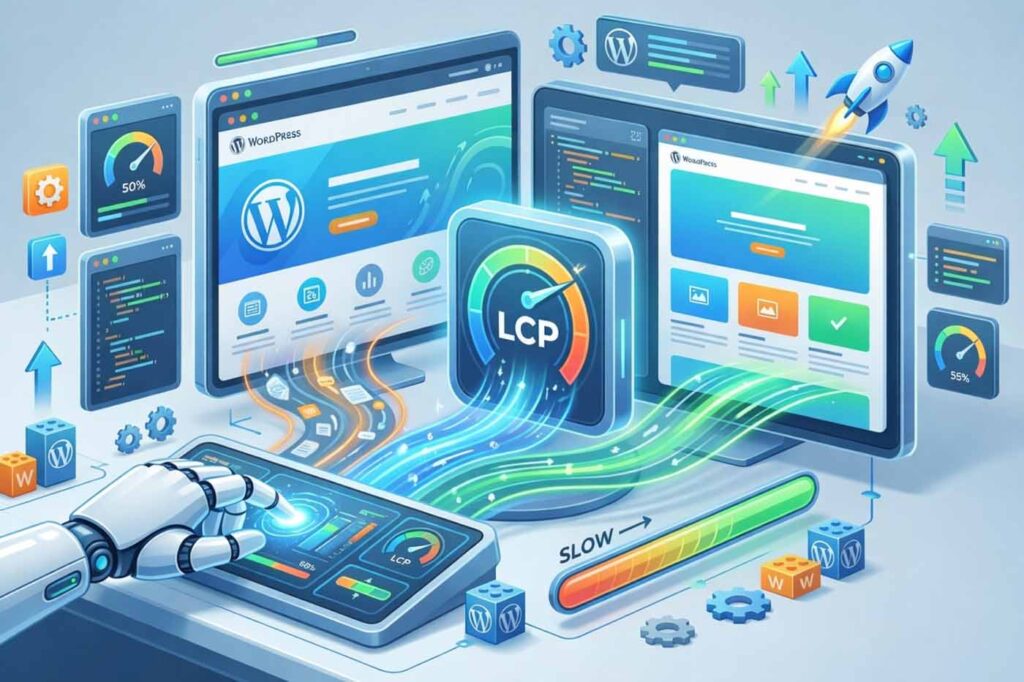
How Do You Improve LCP in WordPress for Faster Rankings?
In case your WordPress website is experiencing a slowdown, then you’ve LCP to blame. Improving the performance of the largest contentful paint for WordPress requires you to optimize server response time, get rid of render-blocking resources, convert images to next-generation formats such as WebP/AVIF, and preload the hero image. Done right, these steps bring LCP under 2.5 seconds, Google’s threshold for a passing Core Web Vitals score and directly lift your search rankings.
The page speed is now much more than a mere technicality. The Core Web Vitals update by Google made it a confirmed ranking signal. In regard to WordPress, optimizing LCP is one of the most impactful changes that you can make. Here’s the thing: if you have a blog, an eCommerce website, or a service website, then slow loading time of above-the-fold content kills your conversions. Here in this guide – courtesy of rajatoqier.com own experts – learn how to identify and resolve every problem related to the LCP metric that you may be encountering with your WordPress website.
Need expert help fixing your Core Web Vitals today?
What Is Largest Contentful Paint and Why Does It Matter?
Largest Contentful Paint (LCP) is the metric for how long it takes from the start of load until the time the largest visible content within the viewport – usually a hero image, banner, or headline text box renders on your site. It’s one of three Core Web Vitals that Google uses as key performance indicators (KPIs) of real-world user experience, the other two being CLS and INP.
Google’s LCP scoring thresholds are straightforward:
| LCP Score | Time Range | Google Rating |
| Good | ≤ 2.5 seconds | ✅ Passes Core Web Vitals |
| Needs Improvement | 2.5 – 4.0 seconds | ⚠️ Warning Zone |
| Poor | > 4.0 seconds | ❌ Fails — Ranking Impact |
A poor LCP score signals to Google — and your visitors — that your page is slow. Consequences: high bounce rate, conversion rate and bad SEO ranking. In case you want to have more details about this subject, read our article on Ultimate Guide to Improving Core Web Vitals in WordPress.
What Causes Poor LCP on a WordPress Website?
Before you can improve Largest Contentful Paint metric scores, you need to understand what’s causing the problem. Most WordPress LCP failures trace back to a handful of root causes, all of which are fixable without rebuilding your entire site.
Slow Server Response Time (High TTFB)
Time to First Byte is a measure of the time needed to receive the first byte of the HTML document from the web server. Every millisecond of TTFB delay adds directly to your LCP time. Reasons: overload of shared web-hosting servers, ineffective PHP and a large WordPress database.
Render-Blocking JavaScript and Stylesheets
In case the browser finds render-blocking resources like CSS and JS files included in the <head>. The browser stops rendering until these resources are downloaded, parsed, and executed. This directly eliminates layout shifts and loading delays only after those resources finish, pushing LCP out significantly.
Unoptimized Images Above the Fold
If your LCP element is an image (which it is on most WordPress pages), its file size, format, and loading priority matter enormously. Images delivered in legacy formats like JPEG or PNG instead of next-gen image format delivery (WebP/AVIF) are significantly heavier. And if your hero image is caught in a lazy-load queue, it gets deprioritised, directly worsening LCP.
Missing Critical CSS and Preloads
If the browser is unable to determine which styles are required to render the first viewport. Then it has to wait until the entire style sheet is loaded. Not using critical CSS inlining or preloading hero background images will cause the LCP element discovery to be delayed.
How Do You Measure Your WordPress LCP Score?
You cannot optimize server response times for WordPress or fix LCP problems you haven’t measured. Here are the three tools that give you the clearest picture:
- Google PageSpeed Insights: insert your URL and get both field and lab data. It helps you find your LCP element, identify any render-blocking issues, and prioritise the recommendations.
- Google Search Console: The Core Web Vitals report shows LCP status across your entire site, grouped by URL pattern: essential for large sites with dozens of page templates.
- Chrome DevTools (Performance Tab): For deep dives, record a page load and inspect the exact LCP element, when it was discovered, and what was blocking it. This is where you’ll confirm whether your Add fetchpriority attribute to critical images fix actually worked.
- WebPageTest: Provides waterfall charts and filmstrip views that visually map exactly when your LCP element rendered and which resources blocked it.
How Can You Fix and Improve LCP in WordPress Step by Step?
With your score measured and your LCP element identified, work through these strategies in order. These are the same techniques our team applies through our Core Web Vitals optimization service.
1. Slash Time to First Byte by Upgrading Hosting and Caching
To improve the server response time on WordPress, begin with your server infrastructure. The time of the first byte can reach 400-800 milliseconds when using shared hosting due to the server sharing. Consider switching to managed WordPress hosting or VPS servers that don’t have shared server resources.
- Use full-page caching using WP Rocket, LiteSpeed Cache, or W3 Total Cache plugins.
- Install PHP 8. 1 or higher because PHP 8. Here’s the thing: X series cuts down the execution time by 30% compared to PHP 7. X.
- Perform a clean-up of your database from unnecessary revisions, spam, drafts, and expired transients with WP-Optimise and alike.
- Enable object caching with Redis/Memcached if the host allows it to make database queries faster on subsequent tries.
2. Prioritize and Optimize Your LCP Image
For most WordPress sites, the LCP element is an image. To minimize steps to minimise LCP viewport loading time, you must treat that image differently from every other image on the page.
- Implement fetchpriority for key images: Use fetchpriority=”high” for your hero image’s <img> tag. The browser will immediately download this resource and not queue it among other, less important resources.
- Don’t use lazy loading on above-the-fold images: Never set loading=”lazy” for your LCP image. As it’s evident from its name, lazy loading loads resources late, so it won’t be needed for your most important above-the-fold element.
- Preload hero background image: If your LCP element is a CSS background image, use <link rel=”preload” as=”image”> in <head> so the browser discovers it early.
- Image formats delivery optimization (WebP/AVIF): Use next-generation image formats in the form of WebP and, if you want better compression, AVIF. Here’s the thing: plugins such as Imagify, ShortPixel, or Smush do this automatically. WebP images are usually 25-35% smaller than JPEGs.
- Offer images with appropriate sizing: Don’t provide a 2400px-wide image within an 800px-wide container. Instead, use the srcset technique for different devices.
Here’s the thing: for additional guidance on optimizing images and hosting. You can find an article by Hostinger on how to speed up WordPress.
Want your LCP image prioritised correctly? Let our technical team handle it.
3. Eliminate Render-Blocking Resources
To fix render-blocking JavaScript and stylesheets, you need the browser to paint your above-the-fold content without waiting for every CSS and JS file to load first.
- Add the Defer Attribute to Non-Critical JS Files: It’s key that you give a defer attribute to your non-critical JS codes. All of the caching plugins, including WP Rocket and LiteSpeed Cache, will take care of this problem using a toggle.
- Inline Critical CSS: Critical CSS will contain all of the CSS rules needed for rendering above-the-fold content. And then those will be included in a <style> tag within <head>. Defer the rest of your stylesheet.
- Remove unused CSS: Use Google Chrome DevTools Coverage tab or plugin such as Asset CleanUp to find and delete stylesheet rules which aren’t being used in particular page templates.
- Minimise main thread work and execution time: Large frameworks and external scripts (chats, advertisements, tracking scripts) take up main thread resources and slow down rendering. Identify and analyse scripts to decide whether to defer or remove them.
4. Deploy a CDN to Cut Latency
A Content Delivery Network stores your static files, such as images. CSS and JavaScript are on a network of nodes around the world and serve them to visitors from the nearest location, dramatically reducing lag. CDN deployment alone helps improve page speed for an international audience by reducing LCP by 30%-50%. Cloudflare, BunnyCDN and KeyCDN can be easily integrated into your WordPress site using a plugin or at the DNS level.
5. Enable Browser Caching for Repeat Visitors
Caching in the best way possible is that browsers will cache the static files of your website locally. So not downloading them again during their further visits to the website. Configure cache-control headers for high expiry periods (1 year for versioned files). Here’s the thing, it will also help lower Time to First Byte (TTFB) for recurring visitors because of less traffic to the origin server.
6. Audit and Slim Down Themes and Plugins
Overly complex themes include tens of nonessential CSS and JavaScript files on all pages. Select fast, lightweight themes (GeneratePress, Kadence, Astra) or go with a block theme. Similarly, each plugin creates overhead, even those that are turned off, because they may still have autoloaded data in the database. Use the Page Speed Optimization report to identify plugins that affect your Core Web Vitals scores negatively.
7. Minify CSS and JavaScript
Minification removes comments, unnecessary spaces, and extra characters from your code files without affecting the functionalities. If your CSS file is 150 KB in size, it will get compressed to about 90 KB when you perform minification, which is no small saving. Here’s the thing: you can use the minification feature in your chosen caching plugin and test its effects on your staging site.
Which LCP Optimization Strategies Give the Biggest Gains?
Not every fix delivers equal impact. Use this table to prioritise your efforts:
| Optimization Strategy | LCP Impact | Difficulty | Best Plugin/Tool |
| Upgrade hosting / reduce TTFB | Very High | Medium | WP Engine, Kinsta |
| Add fetchpriority to hero image | Very High | Low | Manual / WP Rocket |
| WebP/AVIF image delivery | High | Low | Imagify, ShortPixel |
| Exclude LCP image from lazy load | High | Low | Manual/plugin toggle |
| Preload hero background image | High | Medium | Manual <link> tag |
| Eliminate render-blocking CSS/JS | High | Medium | WP Rocket, Asset CleanUp |
| Enable full-page caching | High | Low | LiteSpeed Cache, WP Rocket |
| Deploy CDN | Medium-High | Low | Cloudflare, BunnyCDN |
| Enable browser caching | Medium | Low | Server config/plugin |
| Minify CSS and JavaScript | Medium | Low | WP Rocket, Autoptimize |
| Reduce main-thread work | Medium | High | Chrome DevTools audit |
Ready to implement these fixes but short on time or technical resources?
Start Improving Your LCP Score Today
Improving the Largest Contentful Paint in WordPress isn’t an onetime activity – it calls for a strategic audit. Targeted fixes and monitoring as your website evolves and expands. But, the result is worth the effort – improved site speed, improved Core Web Vitals scores, increased organic traffic and conversions. Here’s the thing: either way you choose to optimize, this guide will equip you with all the steps you require to do so. If you want to engage professionals to help you do it in the right way and in a short period of time. Contact us , and we’ll conduct an audit of your website and develop a personalized strategy of LCP optimization for you.
Frequently Asked Questions
The process of LCP optimization includes the following:
(1) decreasing TTFB via improved hosting services and server-side caching;
(2) optimizing the LCP image through conversion to WebP/AVIF format, using fetchpriority=”high”, and making sure it isn’t part of the lazy load;
(3) by avoiding render-blocking resources through deferring non-key JS files and inlining Critical CSS;
(4) tapping into CDN to reduce latency;
(5) using browser caching for return visits. The result is that LCP becomes below 2. 5 seconds.
In the optimization of a WordPress blog. There has to be a connection between the performance of the blog, SEO, and the quality of the content. About performance, select reliable hosting, implement full page caching, optimize the images into next-generation format, and get rid of render-blocking CSS & JS. With SEO. Make sure that each blog post is targeting a certain keyword, the post is following heading hierarchy rules, the load time is fast on mobile and passes Core Web Vitals tests.
Increasing traffic to a WordPress blog involves both SEO and content marketing. On a technical level, having good Core Web Vitals (LCP, in particular) provides the algorithm with a signal of high quality that may positively impact ranking. For content marketing. One should aim at using long-tail and conversational keywords, create full guides, use internal linking between similar articles, and get backlinks from authority websites in your niche.
As per Google’s recommendations, the target for LCP would be 2. 0 seconds. 5 seconds and below. LCP ranging from 2. 5 to 4. 0 seconds fall under the category of ‘Needs Improvement’, though it may affect your ranking negatively. When the number crosses 4. Here’s the thing: 0 seconds, it falls under ‘Poor’, which definitely impacts your ranking. This is determined from actual user data collected at the 75th percentile of your page’s visitors.
Largest Contentful Paint problems can be attributed to one or more of the following issues: server delays in response time (TTFB). Render-blocking assets such as JavaScript or CSS files, large images using legacy file types instead of WebP/AVIF, hero images being stuck in the lazy load queue, absence of Critical CSS or preloads for the above-the-fold elements, and an overload of main thread tasks due to third-party scripts. This diagnosis can be made by first identifying the exact LCP element via the use of Google PageSpeed Insights.